
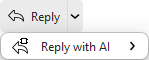
eM Client provides features for composing emails with the help of text generation and editing made by Artificial Intelligence, also called AI.
The feature requires an AI Add-on to work, as using the AI features uses up Tokens.
The AI features are located in two places at this time:
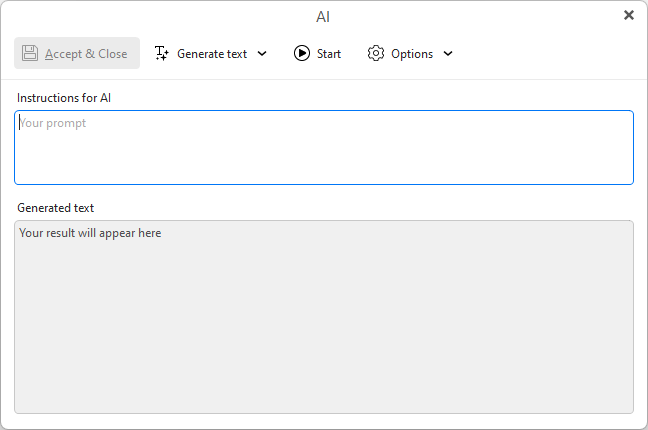
In the compose window you can click the AI button to generate or edit text.
The AI window contains several parts. The toolbar with available actions, Instructions for AI field and Generated text.
Toolbar
The toolbar contains several buttons to help you customize the outcome of your query to the AI server.
Accept & Close button 
Once you have a Generated text in the lower part of the window, this button will move the text over to the Compose window, where you can manually edit it or hit send!
Generate text
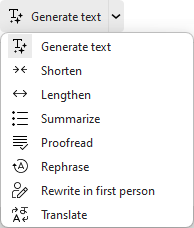
These are the main options to specify what to do with the given text or query. If you have written nothing yet, you woukd

Start button sends the prompt to the server to perform the AI text generation or editing you indicated.
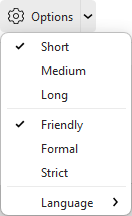
Options contains additional options for customizing the final text for length, tone and language.
—————————
—————————
Instructions for AI
This field is for the text prompt sent to the server - it can be text you type in or if you selected the previous reply or text in the compose window, it will be included here.
Generated text
The result from the AI server will be shown here. You can still change your prompt in Instructions for AI field and run the AI again to have the AI server change the text. Once you are happy with the text or want to do any further changes manually, simply
press the Accept & Close button - that will take you back to the compose window where you can either edit the text yourself or send it out.
The reply with AI option will take the received message and analyze the content, drafting a message for your based on the context and the type of message you specify. The message will be opened in a Compose window with the pre-filled text.
If you just click the Reply with AI button, the program will generate a neutral response based on the original text. If you use one of the drop-down options, the reply will be customized based on your selection.
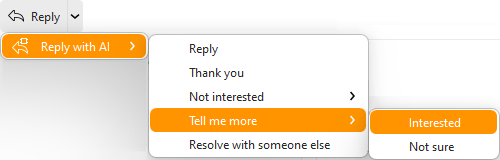
The generated response will pop up in a Compose window, so you can still make any additional changes and check the text before clicking Send.